the benefits of the hierarchical file system is that it is straightforward and easy to draw parallels to storing things within the real world
for small scale tasks this is beneficial since you do not need to maintain duplicates
these do not scale because it is rare to need to search a collection of things in only one way
when organizing in a hierarchy you must select one single truth path that you follow every time
imagine searching for a book, will you organize it by author, title, year, etc..
hierarchical systems also require reorganization for maintainability as the system changes
causes breaking since the full path is where the file is in the hierarchy
Tree Structuring
The model popularized by Unix and Linux.
Directory: file that maps *file name components* to files; they are literally just look-up tables.
Regular files: byte sequences (can be read from or written to, unlike directories).
Special files: built into the kernel e.g. /dev/null.
Symbolic links (aka soft links): single files that contain a single string that is interpreted as a file name (could be any file or directory, including another symbolic link). When using ls -l, you can see symbolic links with -> pointing to their target.
Every file name look-up follows the pattern: starting at the root, consult the directory table, resolving any symbolic links along the way.
A file name component is a nonempty sequence of non-slash characters. The / character is very special in the POSIX file convention because they are interpreted as part of a path in the tree filesystem.
/dev/null is useful for “reading nothing” or discarding output:
echo abc > /dev/null
TIP: The first flag for a file when using ls -l tells you the file type: d for directory, l for symbolic link, c for special files like /dev/null, - for regular files.
File names are not recursive by design. If you want to search for files that match the pattern like /usr/*/emacs, then use the find command:
find /usr/ -name emacs
Every file in the POSIX standard has a unique inode number associated with it. You can see them with the -i flag in the ls command:
$ ls -idl /2 dr-xr-xr-x. 21 root root 4096 Dec 17 2021 /# 2 is the inode num
Linux Filesystems
It’s not actually a tree, but it still does not have loops - it’s a directed acyclic graph (DAG). They achieved this with the notion of hard links, which are like aliases for the same file in memory. The iron-clad rule is that hard links must not point to directories.
$ ls -al /usr/bintotal 373832sdafhausegulaskhglkas .dsafhsagkjsajhgjasjga ..sdafkjdhsajsadhgklsda '['
Every directory includes hard links to themselves (.) and their parent directory (..)
These are hidden by default, but you can view these with ls -a. Note that the parent of the root directory / is itself, /.
File names starting with slash are absolute paths, paths that start at the root.
File names that do not start with a slash are interpreted as relative paths, paths starting from the current working directory.
Remember that the file system is just data structures that are mostly on secondary storage, which are persistent, but much MUCH slower than primary storage aka RAM.
Just like RAM, filesystems can have “pointers” too which reference locations on the hard drive. Thus, data structures in the filesystem have to be very intelligently designed in order to be efficient.
Data Structure Representations
A directory is really just a mapping of the file names components to the inodes (via inode numbers) in the filesystem tree.
You can visualize the filesystem as a graph of nodes representing file objects in memory but the file name components along the edges of the graph.
The filesystem is not a tree, but there are some limitations enforced:
You cannot have two different parents with the same directory. The “tree-like” structure holds for directories.
However, you can have multiple links to the same non-file. Files are often identified with names, but actually names are just paths TO the file. You cannot in general look at a file in a filesystem and determine what it’s “name” is because it could have multiple of them. Names are really just useful aliases that we as users assign to the actual file object.
Hard Links
ln a b # create a file named b that's the same as the file already named a
This is like a mutable reference in C++
If you modify one, you modify the other because they’re the same file in memory and even share the same inode number:
$ ln a b$ echo "foo" > b$ cat bfoo$ cat afoo
Hard links work because a directory is simply a mapping of file name components to files
The file names are different, and there’s no rule saying different keys can’t map to the same value, so everything is consistent with what the definition of a directory.
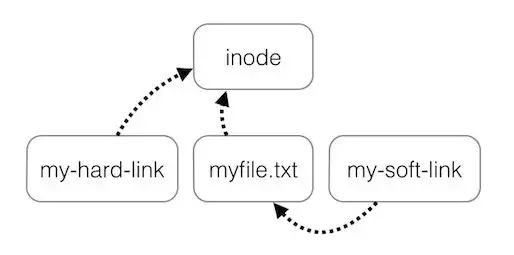
All of the hardlinks point to the same inode and deleting one hard link just decrements the link count
A hard link to a symbolic link will resolve the symbolic link and point to the same inode as where the symbolic link points to
Soft Links
Soft link (symbolic links) on the other hand are actual separate data structures that have content (the string that is interpreted as the path to their target)
A hard link only contributes to the directory size (expands the mapping by one entry). The underlying file remains unchanged.
You can delete soft links without affecting the actual file as the inode of the linked file is different from the inode of the symlink
Symbolic links can also point to nowhere called dangling
When using such a pointer, the OS will try to resolve the existing path that’s saved as the content of its file, but if that file no longer exists, then you get the error:
linkname: No such file or directoryln -s <source> <linkname> # actually creating a symbolic link
A symbolic link is always interpreted when you use it, NOT when you create it so you can have an error later
If a dangling symlink is pointing to a non-existent foo, but then you create a new file foo, the symlink works again.
Midterm Review Session
What is the main difference between a hard link and a symbolic link?
A hard link increments the file object’s reference count. A symbolic link does not increment the file’s reference count.
Deleting all hard links to a file (and ceasing all operations that use the file) deletes the file
Deleting symbolic links do not affect the underlying file
A symbolic link can become dangling if the underlying file is deleted.
Destroying a File
You can use the “remove” command:
rm file
operates on the directory rather than the file itself
What rm is doing is modifying the current directory so that file no longer maps to the file object it did
The contents of the file object still exist in memory
rm barls -ali# foo still shows up
So how does the filesystem know when to reclaim the memory?
Recursively searching every directory for any remaining hard links would be too slow.
Instead, the filesystem maintains a reference count called a link count
Associated with each file is a number that counts the number of hard links to the file i.e the number of entities that map to this file.
IMPORTANT: Symlinks DO NOT contribute to the link count. Link counts ONLY count hard links.
ls -li # You can use this to list the link count to each file
Memory cannot be reclaimed until all processes using/accessing the file are done with it.
Operations like rm simply decrement the link count
If it’s 0, there’s still one step left: the OS must wait until every process accessing the file exits or closes
Then the OS can reclaim the memory.
Likewise, operations like lnincrement the link count, for both the original file and the new hard link.
Even if the link count is 0 and no processes are working, the data is still sitting in storage
It could be overwritten naturally by new files, but it is not guaranteed, and you must use low level techniques to either irreversibly remove the content or recover it.
Filesystem Commands
$ ls -l # The `ls -li` flag outputs each entry in the format:(inode num) (file type AND permissions) (link count) (owner)df -k # Listing all the filesystems and how much space is available in them
find . -inum 4590237 -print# find supports searching by inode number
find . -inum 4590273 -exec rm {} ';'# Remove every file with that inode number found within the current directory:
Soft Link Edge Cases
Can you have symbolic links to directories?
A symlink can even be resolved in the middle of a file name (in which case, it better be a directory).
$ ls -li /bin # Sym Link to Directory... /bin -> usr/bin
Can a symlink point to another symlink?→ Yes.
Can a symlink point to itself?→ Yes.
It can even point to a symlink that points back to itself. They aren’t dangling lists, but if you try resolving the path, you enter an infinite loop.
The kernel has a guard against this. If you attempt this, you get the error:
filename: Too many levels of symbolic links
Symbolic links to hard links? Yes. (Separate inode)
Hard links to symbolic links? Yes. (Hard Link shares inode with sym link, not the file the sym link points to)
the hard link can point to a different file than the symbolic link that it points to because if the symbolic link breaks, the hard link will still point to the original file (inode) while the symlink’s path might change
Give an example of how renaming a dangling symbolic link can transform it into a non-dangling symbolic link.
Soft links can be linked to a relative path. Suppose c has content b, but b only exists as temp/b relative to the current working directory. We can use mv c temp to make the relative path b now work since c is now in the same directory as b.
shred foo # Overwriting the content of a file with random junk:
The mv Command
You can use the “move” command to rename and/or move a file.
mv foo.c bar.cmov foo.c bar # if bar's a directory, it becomes bar/foo.c
This is a very cheap operation because it actually just modifies the mapping of the directory instead of the files themselves.
The implementation consists of
Remove one directory entry
Add another entry in a directory, possibly the same one or another directory
cp on the other hand is more expensive because it has to actually iterate over the content of the file
File Permissions
When you run something like ls -l you see that the first column has a sequence of characters represented like:
rw-r--r--
The permissions bits are just a 9-bit number, which stores 3 groups of octal numbers representing the rwx permission bits for the ugo (owner, group, other) of the file
The flags displayed with ls -l have ten bits, with the leading bit representing the file type:
Bit
File Type
-
regular
d
directory
l
symbolic link
c
char special file
…
…
$ ls -lai /bin/sudo... -rws-r-xr-x 1 root root ... /bin/sudo
The x flag of the octal number for the owner category is an s, short for superuser.
This means that this command is trusted by the OS.
Sensible Permissions
A set of rwx permissions on a file is called “sensible” if the owner has al the permissions of the group and the group has all the permission of others
551 (r-x|r-x|—x) is sensible. The owner’s permissions are a superset of those of the group.
467 (r—|rw-|rwx) is not. The group has w permission while the owner doesn’t.
Non-sensible permissions don’t make sense because the owner is considered to be the most closely related to the file, so they should have the most access.
So How Do You Actually Update a File?
Options:
Write directly to a file F. But if some other program reads the file at the same time, problems could arise. You want to be able to update files (and databases) atomically.
Write to a temporary file F# and then mv F# F. The downside obviously is that it occupies twice the space on drive. The upside is that because mv is atomic, any other processes attempting to use the file at the same time will either get the old file or the new file, not some intermediate state.
Navigating Through the File System
File Names
there can be no slashes or no null characters
the file name component is something that you look up within the directory
Directory
a table of filename components or pointers to files
the pointers are large integers
How does NAME(i) Work - Happens for Every Program
start at the beginning of the file name f
looks at the first character of f and considers whether it is / or something else
if it is / that means it is an absolute link → which allows for it to start at the root directory
otherwise, it will start at the working directory
we walk through the name from left to right and then whenever we see a filename component, we look up that file in the directory that p is currently pointing at
p changes as we go through the name (follow the pointers of the names that we find as we go through the filename)
if we encounter a symbolic link, we have to splice and substitute with the contents of the symlink rather keeping the original name of the symbolic link